
Sprite sheet cutter
This sprite sheet cutter (a sprite sheet splitter) splits an image into PNG frames, previews them as an animation and downloads a ZIP in your browser.
0 frames · 4 columns × 2 rows
Loading the moth sample…
Cut by size or by count
Choose Frame size when you know the dimensions of a pose. A 256 × 64 strip of 32 × 32 cells contains eight columns and two rows. Enter 32 for width and height; the cutter includes complete cells that fit inside the sheet. Any incomplete strip at the right or bottom is left outside the grid. Inspect the orange lines before downloading so a border does not become part of a character.
Choose Rows and columns when you can count the cells. Enter four columns and two rows for the sample. The tool divides the space remaining after the starting offset and gaps into equal whole-pixel cells. Any fractional remainder stays at the far edge. Count blank reserved cells too: leaving one out of the column count would shift every boundary after it.
Align the offset and gap
Offset X and Offset Y move the first cut away from the top-left corner. Gap skips pixels between cells. For a sheet with a two-pixel border and two-pixel spacing, set both offsets to 2 and the gap to 2. In frame-size mode, each next cut begins one frame width plus one gap to the right. The same rule applies down the sheet with frame height.
Rows-and-columns mode divides all remaining space after the leading offset, so a trailing border can add pixels to a cell. Use Frame size for a sheet with a known outside border. For example, the 104 × 70 lantern sheet from the GIF converter cuts correctly at 32 × 32 with offsets of 2 and a gap of 2. Its three-by-two arrangement gives six PNGs.
Detect frames from transparent gaps
Detect gaps scans the alpha channel for fully empty rows and columns. It makes a rectangle for each occupied intersection and drops intersections with no visible pixels. That is useful for a sheet whose characters are separated by transparent lanes but whose frame dimensions were never written down. The orange boundaries show exactly what the PNG files will contain, and the ZIP's JSON preserves the same source coordinates.
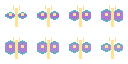
The moth sample is 128 × 64 pixels with eight original 32 × 32 poses. A four-by-two grid keeps each pose on its original canvas. Detect gaps instead returns eight 22 × 22 occupied rectangles. The animation preview centers those rectangles on a common preview canvas. Use the grid when a fixed character anchor matters; the tight cuts are useful for separate icons or individual effects.
Preview the cut frames
Play shows every cut in order, left to right and then down. Pause holds the current pose; Step advances by one and pauses the animation. Start at a slow frame rate to spot a missing limb, a blank cell or a cut that crosses into the next pose. Then increase the speed to see whether the loop joins smoothly. The source sheet remains visible beside the preview on a wide screen.
The frame-rate control changes preview speed and the duration written to frames.json. It does not create additional poses. At 8 frames per second each frame is held for 125 milliseconds, so the eight-frame moth sample takes one second. If a sheet mixes idle, walk and attack rows, cut the files first, then use the sprite animation maker to select and reorder the poses for each action.
Download PNG frames as a ZIP
Download ZIP writes frame-001.png, frame-002.png and the rest in playback order. Each PNG has the dimensions of its own cut rectangle. The accompanying frames.json includes the source width and height, original x/y coordinates, output dimensions, filename and frame duration. Those coordinates refer to the original sheet; an exported single PNG starts at its own top-left corner.
Current PNG saves only the pose showing in the animation preview. Pause before choosing it if you need a particular frame. To build a new atlas from the exported files, open the sprite sheet maker. Its filename sorting keeps the zero-padded sequence in order. Keep the original sheet and the cut ZIP together so you can revisit the crop without trying to reconstruct the source image.
Choose the right cutting workflow
ezgif's sprite cutter supports many input and output formats, tile-size or count slicing, offsets and ZIP downloads. Its page describes an uploaded-file workflow. This cutter reads your image inside the tab and draws the numbered crop boundaries before you export. That makes the source and the resulting poses visible together while you adjust the grid.
SpriteAI's slicer includes row selection, PNG batches and GIF export. Here, transparent-gap detection adds a second way to find boundaries, and frames.json carries those exact rectangles with the PNGs. The maker, cutter and animator each handle a different step: pack separate poses, recover separate poses, then arrange their motion. Start with the step that matches the files you already have.
Questions
How do I cut a sprite sheet into frames?
Drop the image, choose Rows and columns or Frame size, then align the orange boundaries with the cells. Set the offset and gap if the sheet has borders or spacing. Check the animation and download the ZIP of numbered PNGs, or pause and download the current frame.
Can the cutter detect frames automatically?
Detect gaps finds completely transparent rows and columns and uses them as cut boundaries. It keeps only occupied rectangles in reading order. Use a regular grid when the image has an opaque background or a sprite contains empty rows that would divide a single pose.
Does cutting a sprite sheet keep transparency?
Yes. PNG and WebP transparency stays in the cut PNGs. The checkerboard is a preview background and is never baked into the export. JPEG images stay opaque because the source has no transparent pixels.
What is in the downloaded ZIP?
The ZIP contains frame-001.png onward and frames.json. The JSON records the source sheet size, each original source rectangle, its output filename and a duration based on the chosen preview FPS. Rows are read left to right, starting at the top.
Are my sprite sheets uploaded?
No. The browser reads the chosen file, previews the cuts and creates the PNGs and ZIP on your device. You can use a PNG, WebP or JPEG under 16 MB and within 4096 × 4096 pixels, with up to 256 cut frames.
Put your assets into a playable game. Try the ten game templates or get the kit.